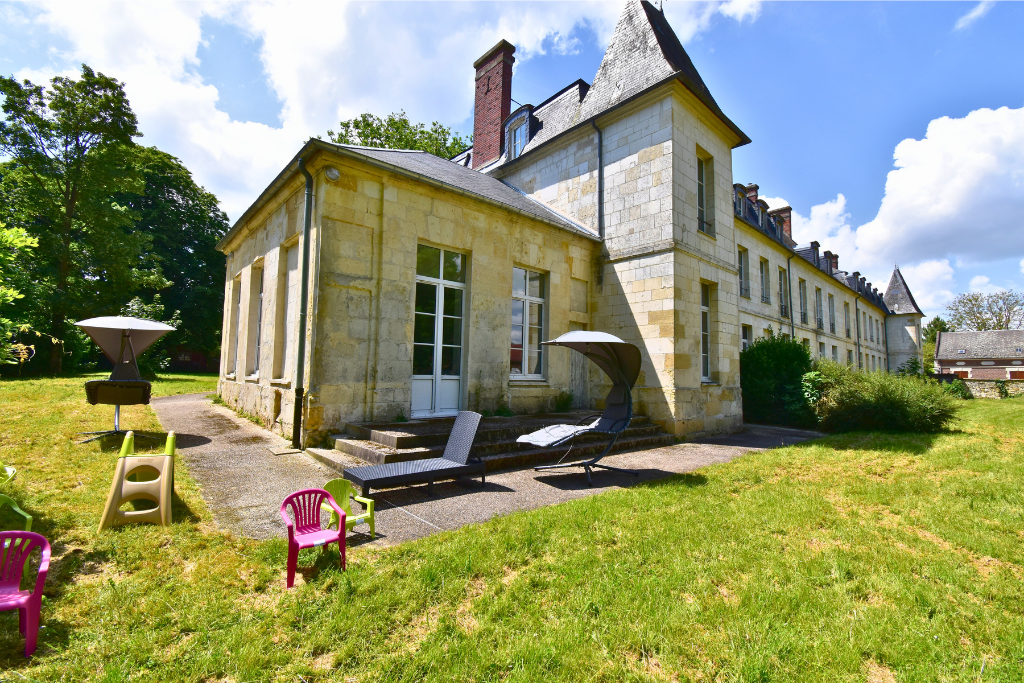
Welcome to Château de Ravenel.
Your accommodation is equipped with a YABER 4K video projector allowing access to television, Netflix, YouTube and other streaming applications.
Depending on the apartment, the system works:
- with a Freebox Pop
- or with an Amazon Fire TV Stick (Molotov)
In all cases, the main step is always the same:
➡️ select the HDMI source.
Most Important Step: Select HDMI
To watch TV or access applications:
- Turn on the projector
- Take the projector remote control
- Press the MENU or HOME button
- Select HDMI
- Once HDMI is selected:
- use the Freebox Pop remote control
- or the Amazon Fire TV Stick remote depending on the apartment
➡️ If the screen is black or no video appears, simply check that HDMI is selected.
Projector Remote Control – Model 1

How to recognize this remote control
- One single red ON/OFF button at the top center
- No arrow button at the top right
- Simple remote with fewer buttons
Important buttons
Under the red ON/OFF button:
- HOME button 🏠 on the left
➡️ return to the projector home screen - BACK button ↩ in the center
➡️ go back - MENU button ☰ on the right
➡️ open the menu and select HDMI
The large center circle is used to navigate through menus.
➡️ Please mainly use these buttons.
Projector Remote Control – Model 2

How to recognize this remote control
- Red ON/OFF button at the top left
- Arrow ↩ button at the top right
- Netflix, Disney+, YouTube and Prime Video buttons at the bottom
Important buttons
Under the top buttons:
- Arrow ↩ button at the top right
➡️ go back or quickly return to the projector main dashboard - HOME button 🏠 in the middle
➡️ return to the home screen - MENU button ☰ on the right
➡️ open the menu and select HDMI
The large center circle is used to navigate through menus.
➡️ Please mainly use these buttons.
Using the Projector with Freebox Pop


How to watch TV
- Turn on the Freebox Pop
- With the projector remote control:
➡️ select HDMI - Once HDMI is selected:
➡️ only use the Freebox Pop remote control
You will then be able to access:
- Netflix
- YouTube
- Disney+
- Prime Video
- Molotov
- other streaming applications
Using the Projector with Amazon Fire TV Stick & Molotov


In some apartments, the television system works with an Amazon Fire TV Stick.
How to access TV channels
- Turn on the projector
- Select HDMI
- The Fire TV Stick will automatically open
- Use the Amazon remote control
- Open the Molotov application
Molotov gives access to:
- live French TV channels
- replay services
- TV content
Important Information
- Please do not modify the projector technical settings
- If you are stuck inside an application:
➡️ use the BACK or HOME buttons - Please make sure the Wi-Fi connection is active
We wish you an excellent stay and a wonderful cinema experience at Château de Ravenel.